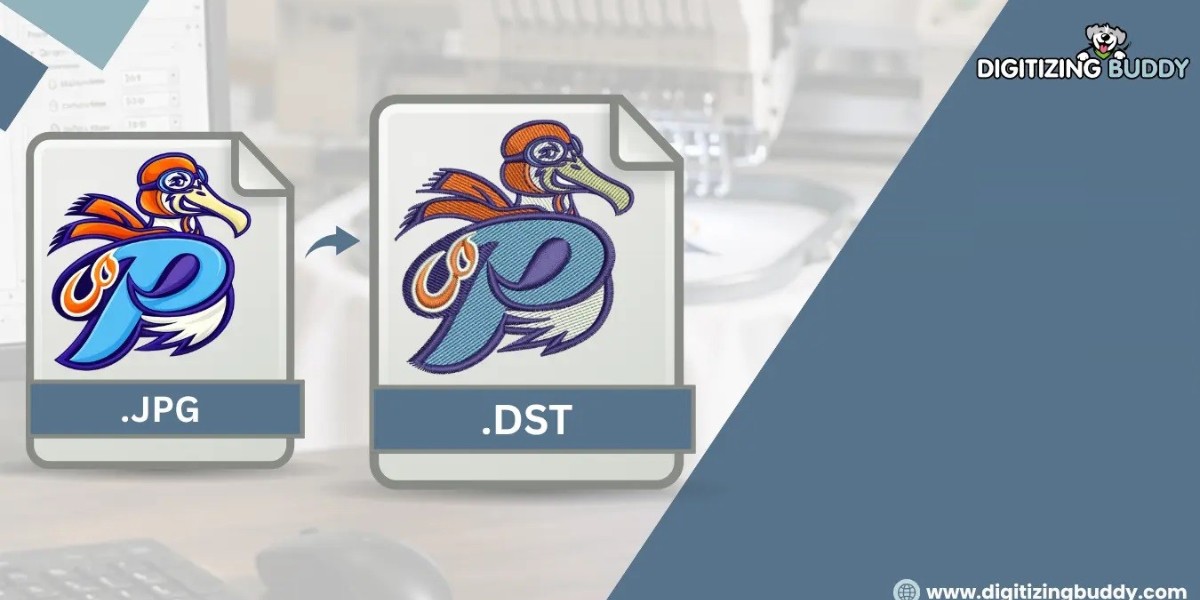

Convert Image Artwork into DST Stitch Format with expert tips on digitizing, stitch settings, and file checks for clean, professional machine embroidery results.
Have you ever found the perfect logo, drawing, or piece of artwork but discovered that your embroidery machine cannot use it? You are not alone. Many people have images in JPG, PNG, or other formats that need to be prepared before they can be stitched onto fabric.
To solve this problem, you need to convert image artwork into DST stitch format. However, this process involves more than changing a file extension. The artwork must be converted into embroidery stitches that a compatible machine can read and sew correctly.
Whether you want to embroider a company logo, create custom clothing, or prepare designs for a small embroidery business, understanding the conversion process can help you achieve better results.
In this guide, we will explain how image-to-DST conversion works, which steps matter most, and how professional digitizing can help you create clean, reliable embroidery designs.
What Is DST Stitch Format?
DST is a machine embroidery file format commonly used by commercial embroidery machines. It stores stitch coordinates and related machine instructions that tell the machine how to sew a design.
Unlike an image file, a DST file does not simply display colors and shapes. It contains information about stitch placement, movement, and other embroidery actions.
For example, a PNG logo may show a red circle with white lettering. Before it can be embroidered, the logo needs to be digitized so the machine knows where to place stitches and how to form each part.
Image Files vs. DST Embroidery Files
Image files and embroidery files serve different purposes.
JPG: Commonly used for photographs and digital artwork.
PNG: Useful for logos and graphics with transparent backgrounds.
SVG: A vector format that stores scalable shapes and paths.
DST: Stores stitch data used by compatible embroidery machines.
An image conversion tool may change one graphic format into another, but creating a usable DST file requires embroidery-specific digitizing.
Why Convert Image Artwork into DST Stitch Format?
Converting artwork into DST format allows you to turn digital graphics into designs that can be stitched onto fabric. It is especially useful for businesses and individuals who want consistent embroidery results.
Here are some common reasons to convert image artwork into a DST file.
1. Embroider Business Logos
Businesses often use embroidered logos on uniforms, caps, jackets, bags, and promotional products. Converting a logo into a properly digitized DST file helps prepare it for machine embroidery.
2. Create Custom Clothing
Fashion designers and clothing businesses can use image-to-DST conversion to prepare artwork for shirts, sweatshirts, sportswear, and other garments.
3. Prepare Designs for Bulk Production
A well-prepared embroidery file can help maintain consistency when producing the same design on multiple items. Proper stitch planning also helps reduce unnecessary machine stops and quality problems.
4. Turn Simple Artwork into Stitched Designs
Illustrations, symbols, badges, and simple graphics can often be adapted for embroidery. However, very small details, thin lines, and complex gradients may need to be simplified.
How to Convert Image Artwork into DST Stitch Format
The conversion process involves several steps. Each step affects how the final design looks and performs on the embroidery machine.
Step 1: Choose a High-Quality Image
Start with the clearest version of your artwork. A clean image makes it easier to identify shapes, outlines, lettering, and colors.
For the best results, use artwork with:
Clear edges and defined shapes
Good contrast between colors
Minimal background clutter
Readable text
Enough detail to identify important design elements
A high-resolution PNG or JPG can work well. Vector artwork may also be helpful because its paths and shapes can be scaled without the same pixelation issues found in raster images.
Step 2: Clean Up the Artwork
Before digitizing, remove unnecessary backgrounds, stray marks, and unwanted details. Check whether any text is too small or any lines are too thin for embroidery.
Remember that thread behaves differently from ink on a screen. Tiny gaps may close, fine lines may disappear, and closely spaced shapes may merge when stitched.
Simplifying the artwork can help preserve its most important features.
Step 3: Digitize the Image
Digitizing is the process of converting artwork into a stitch plan. It requires more than tracing the image because each part of the design must be assigned suitable stitches and sewing directions.
During digitizing, the designer determines:
Stitch types for different shapes
Stitch direction and angle
Stitch density
Underlay stitches for support
Pull compensation where needed
Thread color changes
Stitch order and travel paths
For example, a narrow border may work well with a satin stitch, while a larger filled shape may need a tatami or fill stitch. The right choice depends on the shape, size, fabric, and desired appearance.
Step 4: Set the Correct Design Size
Embroidery designs must be prepared for their intended use. A logo designed for a jacket back may not work well when reduced to fit a shirt pocket.
When resizing artwork, check small lettering, narrow spaces, and fine outlines. Some details may need to be adjusted manually to remain visible at the final size.
Also confirm that the design fits within the embroidery area of your machine and hoop.
Step 5: Adjust Stitch Settings
Stitch settings affect both the appearance of the design and how smoothly it sews.
Important settings include stitch density, underlay, stitch length, and pull compensation. These settings should suit the fabric and design rather than follow one fixed formula.
For example, stretchy fabric may require different support and compensation from stable woven fabric. A design that looks fine on screen can still develop gaps or puckering when stitched if the settings are unsuitable.
Step 6: Export the Design as a DST File
Once the digitizing work is complete, export the design in DST format using compatible embroidery software or a professional digitizing workflow.
Check that the exported file contains the intended design size, stitch sequence, and machine movements. DST files generally do not preserve the full editable artwork or all original thread-color information in the way a native digitizing project may.
If your machine uses DST, confirm that the exported file is compatible with its workflow before production.
Step 7: Preview and Test the Design
Do not assume that a DST file is ready for production simply because it opens successfully.
Review the stitch simulation and, when possible, sew a sample on the intended fabric. A test run can reveal problems that are difficult to notice on a screen.
Look for:
Uneven outlines
Gaps between filled sections
Excessive thread breaks
Puckering or fabric distortion
Poor lettering clarity
Unnecessary jumps or trims
Incorrect design dimensions
Make adjustments where needed before stitching the final product.
Can You Convert JPG or PNG Images Directly into DST?
JPG and PNG files cannot normally become reliable embroidery designs through a simple file-format change. They contain image pixels, not the stitch instructions required by an embroidery machine.
Some automated tools can create a basic stitch pattern from an image. These tools may be useful for simple graphics, but they do not always produce good results without manual corrections.
For example, a detailed photograph may contain shadows, gradients, and many small color changes. Embroidery cannot reproduce every photographic detail in the same way as a printed image.
A professional digitizer may simplify the image, select suitable stitch types, and adjust the design to work better with thread and fabric.
Common Problems When Converting Artwork to DST
Even a good image can produce a poor embroidery result if the digitizing is not handled correctly.
Incorrect Stitch Density
Too many stitches in a small area can make the fabric stiff, cause thread breaks, or create puckering. Too few stitches may leave gaps and weak coverage.
Small Text That Is Difficult to Read
Text that looks clear on a computer screen may become unreadable when embroidered. Letter size, font style, stitch type, and fabric all affect readability.
Poor Stitch Direction
Stitch angles influence how light reflects from the thread and how shapes appear. Incorrect directions can make a design look uneven or create unnecessary bulk.
Gaps and Misaligned Outlines
Fabric can shift or stretch during embroidery. Without suitable underlay and pull compensation, gaps may appear between shapes or around borders.
Too Many Unnecessary Stitches
Poorly planned stitch paths can increase sewing time and cause avoidable jumps, trims, and thread changes. A well-planned design aims for clean results without adding unnecessary stitches.
Tips for Better Image-to-DST Conversion
Use these practical tips to improve the quality of your embroidery files.
Start with clean artwork. Remove unwanted details before digitizing.
Choose a suitable final size. Design for the actual garment or product rather than resizing without checking.
Simplify complicated graphics. Keep the main shapes and remove details that will not stitch clearly.
Use appropriate stitch types. Match the stitch method to the shape and fabric.
Check the color sequence. Make sure thread changes and color sections follow the intended design.
Preview the stitch path. Look for unnecessary movements and areas that may cause problems.
Test on the target fabric. A sample run helps identify issues before full production.
These steps can save time, reduce wasted materials, and help you achieve more consistent embroidery.
Should You Convert Artwork Yourself or Hire a Professional?
The right option depends on your experience, software, design complexity, and production needs.
DIY DST Conversion
Doing the work yourself may be suitable if you already understand embroidery digitizing and have compatible software.
Advantages:
More control over the design
Opportunity to learn new skills
Ability to make changes independently
Challenges:
Digitizing software may require an investment.
Learning stitch settings takes time.
Complex logos can require substantial manual editing.
Incorrect settings may lead to poor stitching.
Professional Embroidery Digitizing
Professional digitizing can be useful when you need a reliable file for business logos, detailed artwork, small lettering, or repeated production.
A digitizer can assess the artwork, choose suitable stitch types, plan the sewing order, and adjust the file for its intended application.
At Digitizing Buddy, you can explore professional embroidery digitizing support when your artwork needs to be prepared for machine embroidery. Providing the original artwork, target size, fabric type, and machine requirements can help the digitizer prepare a more suitable file.
How to Prepare Artwork Before Sending It for Digitizing
If you plan to use a professional service, sharing the right information can make the process smoother.
Prepare the following details:
Original artwork: Send the clearest available image or vector file.
Final dimensions: Specify the intended width and height.
Fabric type: Mention whether the design will go on a cap, shirt, jacket, bag, or another item.
Preferred colors: Provide your desired thread colors or a reference image.
Machine format: Confirm that you need a DST file.
Special requirements: Explain whether the design includes small text, fine outlines, or specific placement needs.
These details help the digitizer make informed choices instead of relying on assumptions.
Conclusion
Learning how to convert image artwork into DST stitch format helps you understand what is required to turn digital graphics into machine embroidery. The process starts with clean artwork, continues through careful digitizing and stitch planning, and ends with file checks and sample testing.
Simply changing a JPG or PNG into a file with a DST extension will not create a proper embroidery design. The artwork must be converted into suitable stitch instructions that account for fabric, design size, stitch density, and machine requirements.
For simple projects, DIY digitizing may be worth learning. For complex logos or production work, professional help from Digitizing Buddy can make the process easier and help you prepare a file suited to your embroidery needs.
The most important step is to focus on stitch quality, not just file conversion. A well-digitized design is more likely to produce clean details, consistent coverage, and a professional finish.
FAQs
1. What does it mean to convert image artwork into DST stitch format?
It means digitizing digital artwork into a machine embroidery file containing stitch coordinates and machine instructions. The process prepares the design for stitching rather than simply changing its file extension.
2. Can I convert a JPG image to DST for free?
Some free tools offer basic image-to-embroidery conversion. However, the results may need manual editing to improve stitch direction, density, outlines, and overall sewability. Free conversion does not always produce a production-ready design.
3. Which image formats can be used to create a DST file?
Common starting formats include JPG, PNG, and SVG. The best choice depends on the artwork and the software or digitizing service being used. Clean vector artwork can be especially helpful for logos and simple shapes.
4. Why does my DST design look different when embroidered?
Fabric movement, stitch density, underlay, pull compensation, thread thickness, and design size can all affect the result. Previewing the stitch sequence and testing the design on the intended fabric can help identify and correct these problems.
5. Can Digitizing Buddy help convert artwork into DST format?
Digitizing Buddy is an option to explore for embroidery digitizing support. Share your artwork, required dimensions, fabric type, and DST format requirement so the service can assess your project and its needs.